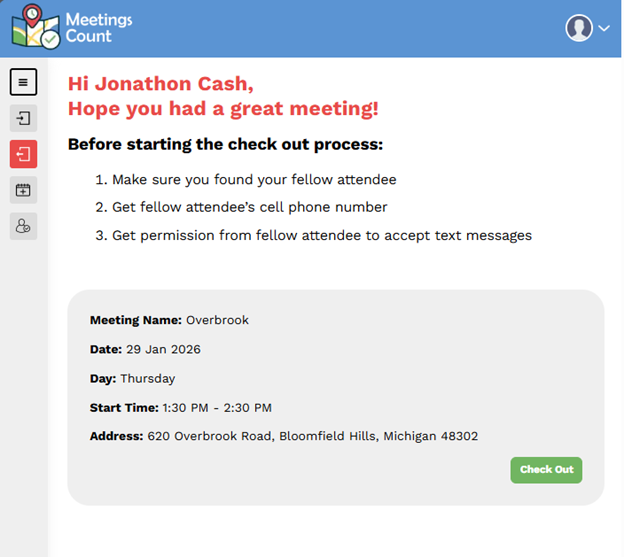
Here’s how to check in on Meetings Count, so your attendance is logged correctly.
Go to Meetings Count and tap the person icon in the top right corner.

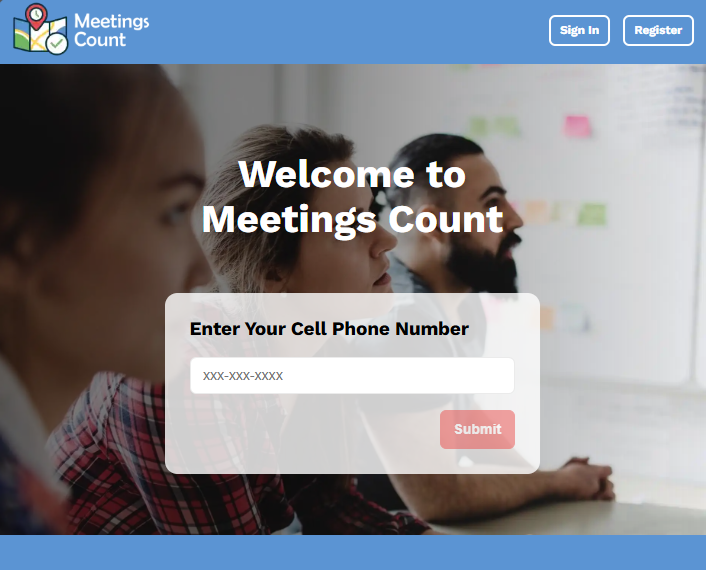
If you are not logged in, you will see the sign in screen. To sign in, enter your phone number. You will instantly receive a text message with a four-digit One Time Password.
If this is your first time logging in. You will need to start your free trial. No credit card required for the first 30 days. You will also need to allow your phone to use your location.
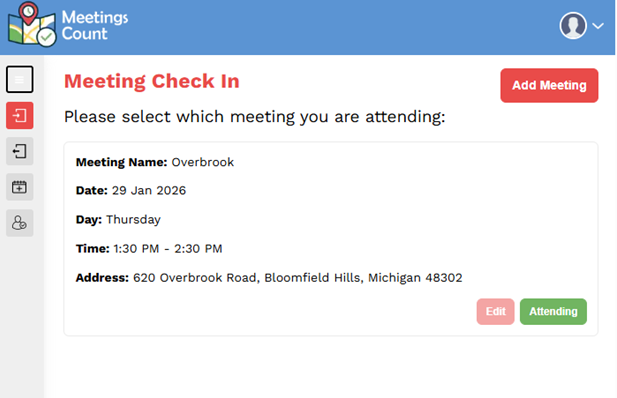
The Check-In screen is the first icon below the three bars on the top left of the screen. It is an arrow pointing to the right. If your meeting has already been created, you will see the meeting on the Check-In screen when you are at your meeting.
Simply click Attending. Another screen will appear, click yes attending. You are checked into the meeting. Easy-peasy steps.
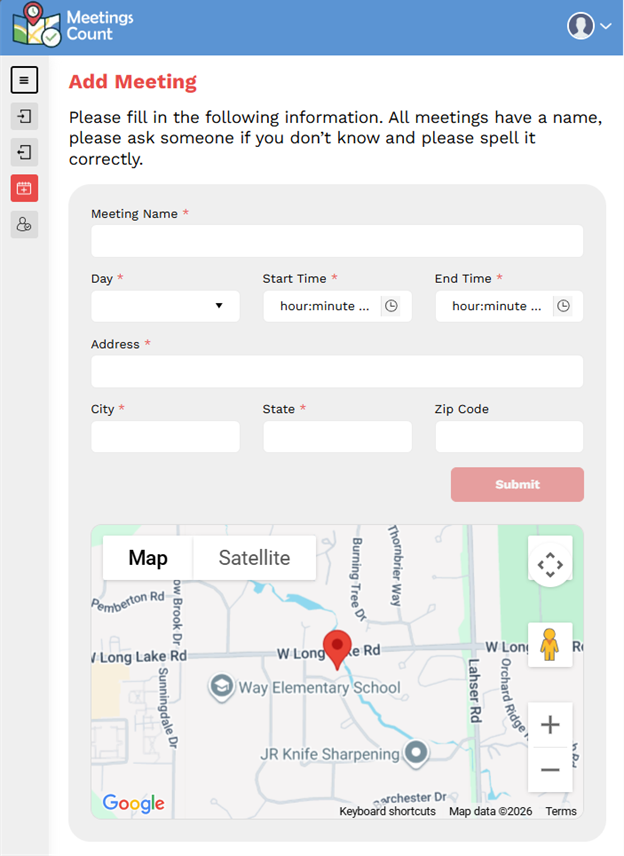
If your meeting has not been created, you will need to add a meeting. This is the third icon below the three bars on the top left. It is a calendar with a plus sign. Meeting Name, Day, Start Time, End Time, and Address are required. The map at the bottom can be used for the address. By double clicking on the red pin icon, the address will auto-populate. Click submit to add the meeting.
You can now navigate back to the Check-In screen. Simply click Attending. Another screen will appear, click yes attending. You are checked into the meeting. Easy-peasy steps.
Remember, your arrival time and distance from the meeting are tracked. It is important to arrive on time and enjoy the meeting before the meeting. Have a great meeting.